

Canva Tutorials for Beginners: Create Stunning Designs
Canva is a browser-based and mobile design platform that helps beginners create polished visual content without mastering complex professional software. Its templates, drag-and-drop editor, media library, and accessible tools make it useful for presentations, social posts, flyers, invitations, resumes, videos, and more. The best way to learn is not to chase every feature at once. Start with a clear purpose, understand the editor, practice visual hierarchy, and gradually build a repeatable design process.
This guide explains the essential Canva skills from the first project through confident customization. You will learn how to choose dimensions, work with templates, edit text and images, apply color thoughtfully, organize elements, export files, and avoid common mistakes. By the end, you should be able to create attractive designs that communicate clearly rather than simply decorate a page.
Canva Tutorials For Beginners: Start With a Clear Design Goal
Before opening Canva, define what you are making and who will see it. A social media graphic, classroom presentation, business flyer, and printable invitation require different dimensions, wording, and visual priorities. Write one sentence describing the desired action or takeaway. For example, “Encourage local customers to register for Saturday’s workshop” is more useful than “Make a nice poster.”
List the information the audience must notice first, second, and third. This simple ranking creates hierarchy. A poster may prioritize the event name, date, and registration instruction. A presentation slide may prioritize one idea, supported by a short explanation. When every detail is equally prominent, viewers have difficulty knowing where to look.

Also collect essential materials before designing. Gather logos, photographs, correct spellings, contact details, brand colors, and any required disclaimers. Preparing these items reduces interruptions and prevents avoidable corrections later.
Create Your First Canva Design
Sign in to Canva and choose Create a design. You can search for a format, select a suggested category, or enter custom dimensions. Select the size based on the final destination. A screen graphic and a printed document are not interchangeable, even when their content is similar.
The editor generally includes a canvas in the center, a side panel containing design tools, and controls across the top for editing, arranging, sharing, and exporting. Interface labels may change as Canva updates, but the underlying workflow remains familiar: select an element, adjust it, review the whole composition, and revise.
Name the project immediately. A descriptive file name such as “Spring Workshop Flyer Final” is easier to locate than an automatically generated title. Canva commonly saves work online, but saving is not a substitute for checking the exported file. Always review the actual download before publishing or printing.
Choose a Template Carefully
Templates provide structure, not a finished answer. Search for a style that matches your audience and message, then inspect its spacing, text hierarchy, image areas, and color relationships. Avoid choosing solely because the preview looks fashionable. A visually dramatic template may be unsuitable for a serious announcement or a document containing substantial information.
After selecting a template, replace sample content promptly. Placeholder words can influence spacing, so use realistic text before making final adjustments. Remove decorative elements that do not support the purpose. A simpler template is often easier to adapt successfully than an elaborate one.
Understand the Main Editing Tools
The Templates or Design area helps you browse layouts. Elements contains shapes, lines, frames, charts, icons, and other objects. Text provides headings, subheadings, and body text combinations. Uploads lets you add your own photographs, graphics, and videos. Projects or folders help you find previous work, depending on the account interface.
To select an object, click or tap it. Drag corner handles to resize while preserving proportions when possible. Use side handles cautiously because stretching photographs or logos can distort them. Move an object by dragging from its central area, and use keyboard arrow keys for small adjustments when working on a computer.
Undo is essential. If an experiment weakens the layout, reverse it rather than trying to repair every consequence manually. Duplicate useful objects when you want a related variation. Group multiple elements after positioning them together, so they move as one unit. Ungroup them when individual editing is necessary.
Work With Text
Text should be concise, readable, and organized. Select a text box to change its words, font, size, color, alignment, spacing, and effects. Use a strong heading for the main message, a smaller supporting line for context, and body text only when readers genuinely need additional detail.
Limit the number of typefaces. Pairing a distinctive heading font with a highly readable body font can create contrast, but too many styles make a design appear accidental. Choose fonts that suit the subject and audience. A playful display face may fit a children’s party, while a clean, restrained font may better support a professional report.
Pay attention to line length and line spacing. Very wide paragraphs are tiring to read, while cramped lines feel dense. Increase spacing when text appears crowded, but do not create large gaps that separate related information. Check capitalization, punctuation, names, dates, and phone numbers carefully. Design cannot repair incorrect content.
Text effects such as shadows, outlines, and curves can attract attention, but restraint usually improves clarity. Apply effects only when they strengthen contrast or support the intended mood. If a heading needs several effects to remain visible, revise the background or choose a stronger color instead.
Add and Improve Images
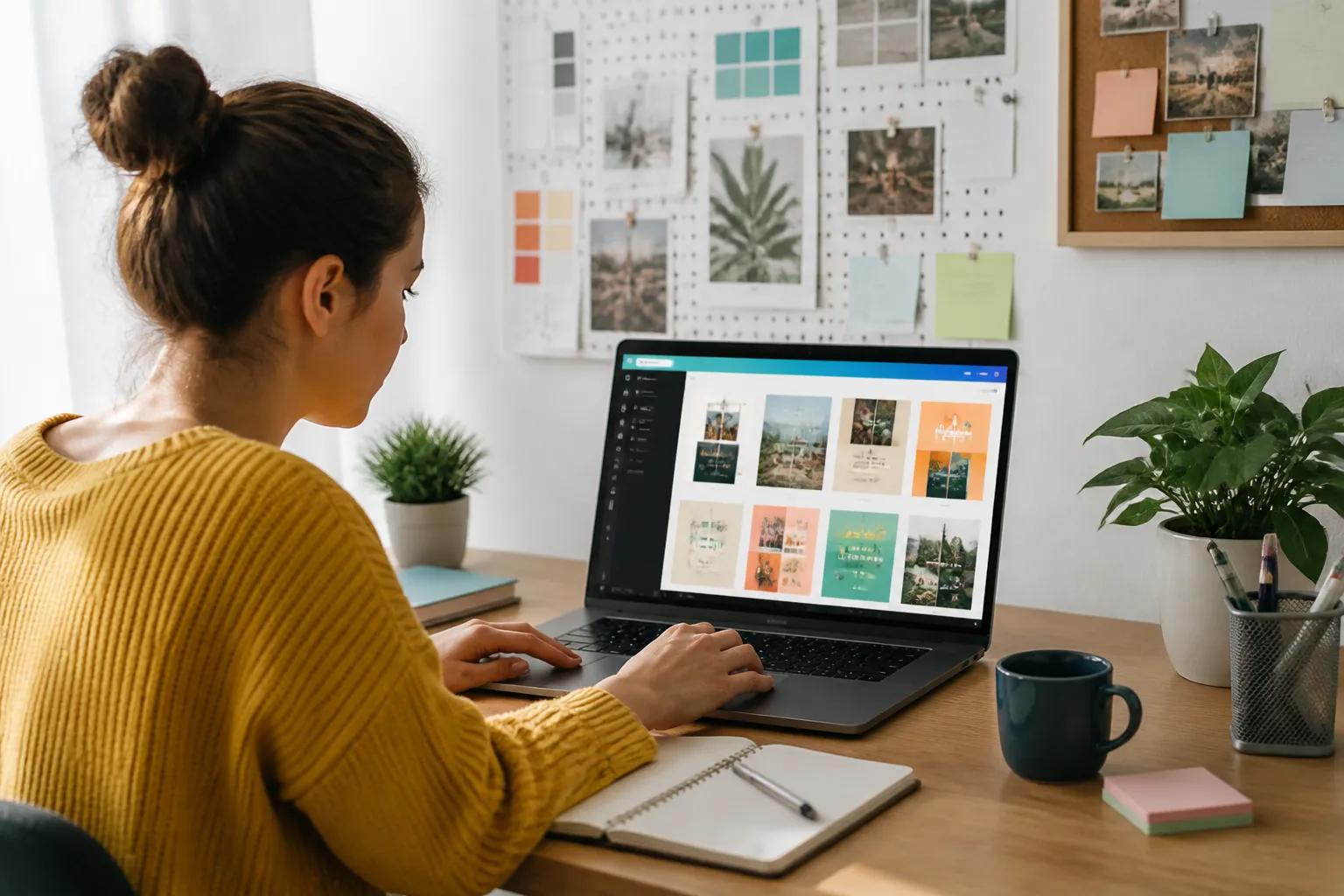
Use Uploads to add original photographs, logos, screenshots, or illustrations. Canva’s available media library can help when you need a suitable visual, but select assets according to relevance and usage permissions. Do not assume that an image is free for every commercial or personal purpose. Review the applicable license information and keep records when the project has legal or organizational requirements.
A photograph should support the message, establish context, or create an appropriate emotional response. Decorative images can be useful, but unrelated visuals compete for attention. Prefer clear, well-lit images with enough empty space for text when the design requires an overlay.
Frames provide shaped areas for photographs. Drag an image into a frame, then double-click or use crop controls to reposition it inside the shape. Centering is not always best; position the subject according to the direction of movement and the surrounding text. Crop tightly enough to communicate, but do not remove important details.
Adjust brightness, contrast, saturation, warmth, transparency, and filters carefully. Consistency matters more than intensity. If several photographs appear together, similar treatment can make the collection feel intentional. Avoid excessive filters that change skin tones or obscure information.
Build Strong Layouts
A beautiful asset can still fail if its layout is confusing. Use alignment guides and spacing controls to create orderly relationships. Elements that belong together should be close; unrelated sections need enough separation. Consistent margins make a design feel deliberate and protect content from being clipped.
Think in layers. Backgrounds sit behind content, while headings, images, and calls to action need appropriate visibility. Use Position or arrange controls to move objects forward or backward. If something disappears, inspect the layer order before rebuilding it.
Contrast helps viewers distinguish important information. Contrast can come from size, weight, color, shape, or empty space. A pale background with dark text is generally easier to read than low-contrast combinations. Test readability at the size people will actually encounter. A detailed graphic may look fine when zoomed in but fail as a small phone thumbnail.
Use Color With Purpose
Begin with one dominant color, one supporting color, and a neutral background or text color. This is a guideline, not a rule, but it prevents uncontrolled variety. If you are designing for an existing organization, use its approved palette when available. Consistent color strengthens recognition across related materials.
Do not rely on color alone to communicate meaning. Add labels, icons, patterns, or text so people with different visual abilities can understand the message. Check small text against its background, especially when using photographs or gradients. If readability is uncertain, place text on a solid or translucent panel.
Design Presentations and Social Graphics
For presentations, give each slide one central idea. Use a short title, a focused visual, and only the supporting words necessary for explanation. Repeating a consistent title position, color system, and spacing pattern helps the audience concentrate on the speaker rather than decode changing layouts.
For social graphics, assume viewers may encounter the design briefly and on a small screen. Make the primary message large enough to notice, keep supporting text brief, and place important information away from edges that may be cropped by different platforms. Create variations for different formats instead of forcing one design into every dimension.
For flyers, organize practical details into scannable groups. Include the event name, date, time, location, audience, cost if relevant, and response method. A QR code or web address should be large enough to use, but test it after exporting. A persuasive call to action should tell readers exactly what to do next.
Create a Reusable Design System
Once one design works, turn its decisions into a small system. Record preferred fonts, colors, logo placement, image treatment, heading sizes, and recurring spacing. Canva features for brand assets or templates may help teams maintain consistency, although available features can depend on the account and current platform configuration.
Duplicate a successful project before creating a new version. This preserves the original and speeds production. Update content systematically: replace the title, revise the image, confirm dates, adjust the call to action, and inspect every leftover element. Reusing structure is efficient; blindly reusing outdated information is risky.
For team projects, establish file names and folder conventions. Agree on who reviews wording, who approves the final design, and which file is authoritative. Clear ownership prevents multiple conflicting versions from circulating.
Export and Check the Final File
Use Share or Download to select the appropriate file type. PNG is often useful for digital graphics requiring crisp detail, while JPEG may create a smaller image suitable for many online uses. PDF formats are commonly chosen for documents or printing, but the best selection depends on the destination and its technical requirements. If a printer or platform specifies settings, follow those instructions rather than guessing.
Inspect the exported file, not only the editor canvas. Confirm that text is present, images are sharp, transparent areas behave as expected, and nothing is clipped. Open links or scan codes when relevant. View the design on another screen and at its intended size. For print, check margins, page order, colors, and whether important content is too close to the edge.
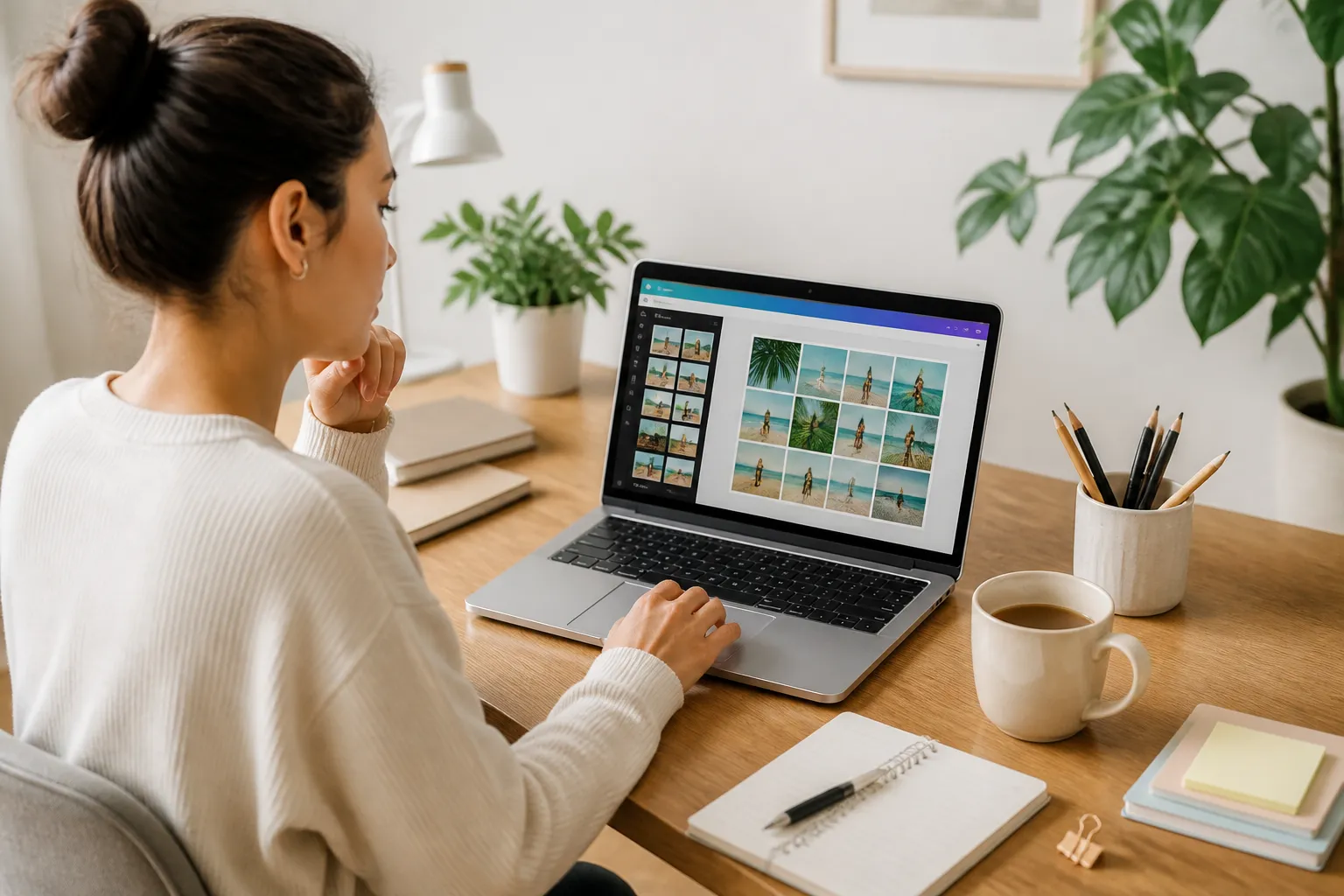
Ask someone unfamiliar with the project to describe the main message after a brief look. Their response can reveal ambiguity that the creator no longer notices. Make final changes only after resolving factual and visual issues, then label the approved version clearly.
Common Beginner Mistakes
One frequent mistake is filling every empty area. Empty space is not wasted; it separates ideas and gives important elements room to stand out. Another mistake is shrinking text to fit too much information. Edit the wording, split the content, or choose a different format instead.
Inconsistent alignment makes even good content appear careless. Use guides, duplicate spacing, and careful inspection rather than trusting approximate placement. Distorted logos and photographs also reduce credibility, so preserve proportions and crop intentionally.
Beginners sometimes add numerous icons, stickers, shadows, and gradients because each feature is attractive alone. Evaluate the whole composition instead. Remove anything that does not clarify, organize, or support the message.
Finally, do not treat a template as proof that the design is finished. Templates may contain generic wording, unsuitable imagery, or details that conflict with your purpose. Personalization is the step that turns a starting layout into a responsible communication tool.
A Practical Learning Plan
On your first day, create a simple quote graphic or announcement. Practice selecting a format, replacing text, changing colors, adding one image, and exporting the result. On the next session, recreate the design without relying heavily on the template. This teaches relationships between spacing, hierarchy, and alignment.
Then create the same message in two formats, such as a square social graphic and a presentation slide. Notice which information must be removed, enlarged, or repositioned. Later, build a small campaign containing a primary graphic, a supporting post, and a printable notice. Consistency across the set will reveal which design choices are worth preserving.
Keep a personal reference page containing effective font pairings, color combinations, layout ideas, and reminders about export settings. Save versions, but avoid collecting endless templates without practicing. Skill develops through deliberate decisions and review, not browsing alone.
Frequently Asked Questions
Is Canva suitable for complete beginners?
Yes. Its visual interface lowers the technical barrier, and templates provide an immediate starting structure. Beginners still need to learn communication fundamentals, including hierarchy, contrast, spacing, and accuracy. The software makes editing easier; it does not automatically make every design effective.
Should I begin with a blank page or a template?
Use a template when you need structure or inspiration, and use a blank page when your content has unusual requirements or an established layout. Either option can produce strong results. The important step is adapting the design to your message instead of preserving decorative choices that do not help.
How many fonts should a design use?
A restrained selection is usually easiest to manage. One font family with different weights can be enough, while two complementary families may create useful contrast. More styles are justified only when the concept requires them and readability remains strong.
Can I use Canva designs for business purposes?
Potentially, but usage depends on the elements, account terms, and applicable licenses. Review the rights associated with photographs, illustrations, fonts, music, and templates before distributing commercial work. When ownership or permission is unclear, replace the asset or obtain appropriate guidance.
Why does my exported design look different?
Differences can result from file type, transparency, color handling, device displays, font substitution, or platform compression. Compare the downloaded file with the editor, then test it in the actual destination. For important print work, request or review the provider’s technical requirements before final export.
How can I make a design look more professional?
Clarify the message, remove unnecessary content, align related elements, use consistent spacing, maintain readable contrast, and choose relevant images. Professional appearance usually comes from disciplined decisions rather than complicated effects. Ask for feedback from someone who represents the intended audience.
Conclusion
Canva gives beginners a practical route from idea to finished visual communication. Start by defining the audience and purpose, choose the correct dimensions, and use templates as flexible foundations. Edit text carefully, preserve image proportions, organize layers, apply color with restraint, and build hierarchy through size and spacing.
The final quality check matters as much as the initial design. Review the exported file, verify every fact, test links or codes, and consider how the work appears at its real viewing size. With repeated practice, you will spend less time searching for effects and more time making purposeful decisions.
A strong Canva workflow is simple: plan, build, simplify, test, and revise. Follow that cycle consistently, and you can create designs that are not only attractive but also clear, accessible, and persuasive.